Reading view

There are new articles available, click to refresh the page.

Time Machine inside a FreeBSD jail

Time Machine inside a FreeBSD jail

Many of my clients do not use Microsoft systems on their desktops; they use Linux-based systems or, in some cases, FreeBSD. Many use Apple systems - macOS - and are generally satisfied with them. While I wash my hands of it when it comes to Microsoft systems (telling them they have to manage their desktops autonomously), I am often able to lend a hand with macOS. And one of the main requests they make is to manage the backups of their individual workstations.

macOS, thanks to its Unix base, offers good native tools. Time Machine is transparent and effective, allowing a certain freedom of management. APFS, Apple's current file system, supports snapshots, so the backup will be effectively made on a snapshot. It also supports multiple receiving devices, so you can even have a certain redundancy of the backup itself.

Having many FreeBSD servers, I am often asked to use their resources and storage. To build, in practice, a Time Machine inside one of the servers. And it is a simple and practical operation, quick and "painless". There are many guides, including the excellent one by Benedict Reuschling from which I took inspiration for this one, and I will describe the steps I usually follow to set it all up in just a few minutes.

I usually use BastilleBSD to manage my jails, so the first step is to create a new jail dedicated to the purpose. Here you have to decide on the approach: I suggest using a VNET jail or an "inherit" jail - meaning one that attaches to the host's network stack. On one hand, the inherit approach is less secure but, as often happens, it depends on the complexity of the situation. If, for example, we are using a Raspberry PI dedicated to the purpose, there is no reason to complicate things with bridges, etc., but we can attach directly to the network card with a creation command like:

bastille create tmjail 15.0-RELEASE inherit igb0

Where igb0 is the network interface we want to attach to.

In case we want to attach to the interface but in the form of a bridge, we should use this syntax:

bastille create -V tmjail 15.0-RELEASE 192.168.0.42/24 igb0

Or, if our server already has a bridge (in this case it's bridge0, but yours might be named differently):

bastille create -B tmjail 15.0-RELEASE 192.168.0.42/24 bridge0

At this point, you can choose: do we want to keep the backups inside the jail or in a separate dataset - which can even be on another pool? In some cases, this can be extremely useful: often I have jails running on fast disks (SSD or NVMe) but abundant storage on slower devices. In this example, therefore, I will create an external dataset for the backups (directly from the host) and mount it in the jail. You could also delegate the entire management of the dataset to the jail, which is a different approach.

Let's create a space of 600 GB - already reserved - on the chosen pool. 600 GB is a small space, but it's ok for an example:

zfs create -o quota=600G -o reservation=600G bigpool/tmdata

We can also create separate datasets inside for each user and assign a specific space:

zfs create -o refquota=500g -o refreservation=500g bigpool/tmdata/stefano

We can enter the jail and install what we need, remembering also to create the "mountpoint" for the dataset we just created:

bastille console tmjail 

pkg install -y samba419
mkdir /tmdata

Exit the jail and instruct Bastille to mount the dataset inside the jail every time it is launched:

exit
bastille mount tmjail /bigpool/tmdata /tmdata nullfs rw 0 0

Let's go back into the jail and start with the actual configuration. First, for each Time Machine user, we will create a system user. In my example, I will create the user "stefano", giving him /var/empty as the home directory - this will give an error since we created a Bastille thin jail, but it's not a problem. It happens because in a thin jail some system paths are read-only or not manageable as they are on a full base system, but the user is only needed for ownership and Samba login.

root@tmjail:~ # adduser
Username: stefano
Full name: Stefano
Uid (Leave empty for default):
Login group [stefano]:
Login group is stefano. Invite stefano into other groups? []:
Login class [default]:
Shell (sh csh tcsh nologin) [sh]: nologin
Home directory [/home/stefano]: /var/empty
Home directory permissions (Leave empty for default):
Use password-based authentication? [yes]: no
Lock out the account after creation? [no]:
Username    : stefano
Password    : <disabled>
Full Name   : Stefano
Uid         : 1001
Class       :
Groups      : stefano
Home        : /var/empty
Home Mode   :
Shell       : /usr/sbin/nologin
Locked      : no
OK? (yes/no) [yes]: yes
pw: chmod(var/empty): Operation not permitted
pw: chown(var/empty): Operation not permitted
adduser: INFO: Successfully added (stefano) to the user database.
Add another user? (yes/no) [no]: no
Goodbye!

Give the correct permissions to the user:

# If you've not created specific datasets for the users, you'd better create their home directories now
mkdir /tmdata/stefano
chown -R stefano /tmdata/stefano/

Now we configure Samba for Time Machine. The file to create/modify is /usr/local/etc/smb4.conf:

[global]
workgroup = WORKGROUP
security = user
passdb backend = tdbsam
fruit:aapl = yes
fruit:model = MacSamba
fruit:advertise_fullsync = true
fruit:metadata = stream
fruit:veto_appledouble = no
fruit:nfs_aces = no
fruit:wipe_intentionally_left_blank_rfork = yes
fruit:delete_empty_adfiles = yes

[TimeMachine]
path = /tmdata/%U
valid users = %U
browseable = yes
writeable = yes
vfs objects = catia fruit streams_xattr zfsacl
fruit:time machine = yes
create mask = 0600
directory mask = 0700

We have set up Time Machine to support all the necessary features of macOS and to show itself as "Time Machine". Having set path = /tmdata/%U, each user will only see their own path.

At this point, we create the Samba user (meaning the one we will have to type on macOS when we configure the Time Machine):

smbpasswd -a stefano

The Time Machine is seen by macOS because it announces itself via mDNS on the network. This type of service is performed by Avahi, which we are now going to configure. Although not strictly necessary (we can always find the Time Machine by connecting directly to its IP and macOS will remember everything), seeing it announced will help other non-expert users and ourselves when we have to configure another Mac in the future.

Recent Samba releases won't need any specific avahi configuration, so we can skip this step.

We are now ready to enable everything.

service dbus enable
service dbus start
service avahi-daemon enable
service avahi-daemon start
service samba_server enable
service samba_server start

Et voilà. If everything went according to plan, the Time Machine will announce itself on your network (if you have different networks, remember to configure the mDNS proxy on your router) and you will be able to log in (with the smb user you created) and start your first backup.

I suggest encrypting the backups for maximum security and observing, from time to time, your Mac as it silently makes its backups to your trusted FreeBSD server.

Installing Void Linux on ZFS with Hibernation Support

Installing Void Linux on ZFS with Hibernation Support

Introduction

FreeBSD continues to make strides in desktop support, but Linux still holds an advantage in hardware compatibility. After running openSUSE Tumbleweed on my mini PC for several months, I decided it was time to switch to a solution I could control more closely. Not because Tumbleweed doesn't work well - it works great! - but I prefer having direct control over what happens on my machine. And I want native ZFS, because I prefer it over btrfs and it allows me to manage snapshots, backups, and rollbacks just as I do on FreeBSD, using the same tools and procedures.

The choice of Void Linux comes from its BSD-like approach: modular and free of unnecessary complexity. This makes it an excellent solution for this type of setup.

ZFSBootMenu is an extremely powerful tool. It provides an experience similar to FreeBSD's boot loader and natively supports ZFS. I strongly recommend reading the documentation and exploring its features, as some of them - like the built-in SSH daemon - can be genuine lifesavers in recovery scenarios.

Prerequisites and Audience

This guide is not for absolute beginners. If you're new to Linux or Unix-like operating systems, you'd be better served by a ready-to-use distribution like openSUSE Leap (or Tumbleweed for a rolling distribution), Linux Mint, Debian, Ubuntu, or Manjaro. The purpose of this article is to demonstrate a stable, upgradeable, and reasonably secure base setup for users already comfortable with system administration. It uses the glibc variant of Void Linux. The musl version requires different commands, for example for locale generation.

Use at your own risk.

This guide synthesizes instructions from several sources:

If your setup differs from what's described here (NVMe disk, UEFI boot, Secure Boot disabled), consult the linked guides for explanations and variations.

Installation Script (Optional)

If you want to reproduce this setup quickly, I maintain a script that automates the procedure described in this guide: disk partitioning, ZFS pool and dataset creation, encrypted swap for hibernation resume, dracut configuration, and ZFSBootMenu EFI setup. An optional KDE Plasma desktop installation is also supported.

The script is interactive and will ask for the required parameters (target disk, timezone and keymap, passphrases, desktop options). Requirements, usage instructions, and known limitations are documented in the repository README

That said, I still recommend going through the manual process at least once. Understanding each step is part of the value of this setup, especially when troubleshooting or adapting it to different hardware.

Boot Environment

Since ZFS isn't supported by the base Void Linux image, we'll use hrmpf, an excellent rescue system based on Void Linux that includes ZFS support out of the box.

After booting, you can either proceed directly or SSH into the machine to continue remotely. I generally prefer SSH since it makes copy-paste operations much easier - especially when dealing with UUIDs and long commands. To enable SSH access, set a root password and allow root login:

passwd

Edit /etc/ssh/sshd_config and enable:

PermitRootLogin yes

Restart the SSH daemon:

sv restart sshd

Find the machine's IP address:

ip addr

You can now connect via SSH from another device.

Initial Setup

Set up the environment variables and generate a host ID - we need it for ZFS:

source /etc/os-release
export ID

zgenhostid -f 0x00bab10c

Disk Configuration

Identify your target disk and set up the partition variables. This approach keeps everything consistent and reduces errors:

# Set the base disk - adjust this to match your system
export DISK="/dev/nvme0n1"

# For NVMe disks, partitions are named like nvme0n1p1, nvme0n1p2, etc.
# For SATA/SAS disks (sda, sdb), partitions are named sda1, sda2, etc.
# Set the partition separator accordingly:
export PART_SEP="p"  # Use "p" for NVMe, empty string "" for SATA/SAS

# Define partition numbers
export BOOT_PART="1"
export SWAP_PART="2"
export POOL_PART="3"

# Build full device paths
export BOOT_DEVICE="${DISK}${PART_SEP}${BOOT_PART}"
export SWAP_DEVICE="${DISK}${PART_SEP}${SWAP_PART}"
export POOL_DEVICE="${DISK}${PART_SEP}${POOL_PART}"

Verify your configuration before proceeding:

echo "Boot device: $BOOT_DEVICE"
echo "Swap device: $SWAP_DEVICE"
echo "Pool device: $POOL_DEVICE"

Wipe the Disk

Warning: This operation will irreversibly destroy all data on the selected disk. Double-check that you've selected the correct disk and be sure to have a complete backup of your system!

zpool labelclear -f "$DISK"

wipefs -a "$DISK"
sgdisk --zap-all "$DISK"

Create Partitions

EFI System Partition

If you're not using UEFI boot, adapt this procedure following the appropriate guide linked at the beginning of this post:

sgdisk -n "${BOOT_PART}:1m:+512m" -t "${BOOT_PART}:ef00" "$DISK"

Swap Partition

The swap partition should be slightly larger than your RAM to support hibernation. When you hibernate, the entire contents of RAM are written to swap, so you need enough space to hold it all plus some overhead. In this example, I have 16 GB of RAM, so I'm creating an 18 GB swap partition:

sgdisk -n "${SWAP_PART}:0:+18g" -t "${SWAP_PART}:8200" "$DISK"

ZFS Pool Partition

sgdisk -n "${POOL_PART}:0:-10m" -t "${POOL_PART}:bf00" "$DISK"

Set Up ZFS Encryption

Encrypting the disk is strongly recommended, especially for laptops. Replace SomeKeyphrase with a strong passphrase that's easy to type. Keep in mind that during early boot, the keyboard layout might default to US, so choose a passphrase that's easy to type on a US keyboard layout:

echo 'SomeKeyphrase' > /etc/zfs/zroot.key
chmod 000 /etc/zfs/zroot.key

Create the ZFS Pool

Create the pool with conservative, well-tested options:

zpool create -f -o ashift=12 \
 -O compression=lz4 \
 -O acltype=posixacl \
 -O xattr=sa \
 -O relatime=on \
 -O encryption=aes-256-gcm \
 -O keylocation=file:///etc/zfs/zroot.key \
 -O keyformat=passphrase \
 -o autotrim=on \
 -o compatibility=openzfs-2.2-linux \
 -m none zroot "$POOL_DEVICE"

Create ZFS Datasets

zfs create -o mountpoint=none zroot/ROOT
zfs create -o mountpoint=/ -o canmount=noauto zroot/ROOT/${ID}
zfs create -o mountpoint=/home zroot/home

zpool set bootfs=zroot/ROOT/${ID} zroot

Export and Reimport for Installation

zpool export zroot
zpool import -N -R /mnt zroot
zfs load-key -L prompt zroot

zfs mount zroot/ROOT/${ID}
zfs mount zroot/home

udevadm trigger

Install the Base System

XBPS_ARCH=x86_64 xbps-install \
  -S -R https://mirrors.servercentral.com/voidlinux/current \
  -r /mnt base-system

Copy Host Configuration

Copy the files we generated earlier to the new system:

cp /etc/hostid /mnt/etc
mkdir -p /mnt/etc/zfs
cp /etc/zfs/zroot.key /mnt/etc/zfs

Configure Encrypted Swap

Now we'll set up the encrypted swap partition. This is where the hibernation magic happens - by using a separate LUKS-encrypted partition instead of a ZFS zvol, we can properly resume from hibernation.

Format the swap partition with LUKS:

cryptsetup luksFormat --type luks1 "$SWAP_DEVICE"

Open the encrypted partition, create the swap filesystem, and activate it:

cryptsetup luksOpen "$SWAP_DEVICE" cryptswap
mkswap /dev/mapper/cryptswap
swapon /dev/mapper/cryptswap

Preserve Variables for Chroot

Before entering the chroot, save the disk variables so they remain available inside the new environment:

cat << EOF > /mnt/root/disk-vars.sh
export DISK="$DISK"
export PART_SEP="$PART_SEP"
export BOOT_PART="$BOOT_PART"
export SWAP_PART="$SWAP_PART"
export POOL_PART="$POOL_PART"
export BOOT_DEVICE="$BOOT_DEVICE"
export SWAP_DEVICE="$SWAP_DEVICE"
export POOL_DEVICE="$POOL_DEVICE"
export ID="$ID"
EOF

Enter the Chroot Environment

xchroot /mnt

From this point forward, all commands are executed inside the new system.

First, load the saved variables:

source /root/disk-vars.sh

Configure fstab

Add the swap entry to /etc/fstab:

/dev/mapper/cryptswap   none            swap            defaults        0 0

Set Up Automatic Swap Unlock

To avoid entering the swap password separately after unlocking the ZFS pool, we'll create a keyfile stored on the encrypted ZFS dataset. This is secure because the keyfile only becomes accessible after the ZFS pool is unlocked.

First, install cryptsetup in the new system:

xbps-install -S cryptsetup

Generate a random keyfile and add it to the LUKS partition:

dd bs=1 count=64 if=/dev/urandom of=/boot/volume.key

cryptsetup luksAddKey "$SWAP_DEVICE" /boot/volume.key

chmod 000 /boot/volume.key
chmod -R g-rwx,o-rwx /boot

Add the keyfile to /etc/crypttab:

echo "cryptswap   $SWAP_DEVICE   /boot/volume.key   luks" >> /etc/crypttab

Include the keyfile and crypttab in the initramfs. Create /etc/dracut.conf.d/10-crypt.conf:

install_items+=" /boot/volume.key /etc/crypttab "

Basic System Configuration

Configure keyboard layout and hardware clock. Adjust the keymap and timezone to match your location:

cat << EOF >> /etc/rc.conf
KEYMAP="us"
HARDWARECLOCK="UTC"
EOF

ln -sf /usr/share/zoneinfo/Europe/Rome /etc/localtime

Configure locales:

cat << EOF >> /etc/default/libc-locales
en_US.UTF-8 UTF-8
en_US ISO-8859-1
EOF

echo "LANG=en_US.UTF-8" > /etc/locale.conf

xbps-reconfigure -f glibc-locales

Set the root password:

passwd

Configure ZFS Boot Support

cat << EOF > /etc/dracut.conf.d/zol.conf
nofsck="yes"
add_dracutmodules+=" zfs "
omit_dracutmodules+=" btrfs "
install_items+=" /etc/zfs/zroot.key "
EOF

Install ZFS:

xbps-install -S zfs

Configure ZFSBootMenu

Set the basic boot properties:

zfs set org.zfsbootmenu:commandline="quiet" zroot/ROOT
zfs set org.zfsbootmenu:keysource="zroot/ROOT/${ID}" zroot

The Critical Step: Hibernation Support

Now we need to configure hibernation resume. This is the key insight that makes this setup work: normally, the encrypted ZFS root mounts first, and then it unlocks the swap partition. But when resuming from hibernation, the kernel needs to read the hibernation image from swap before mounting the root filesystem - otherwise, the saved state would be lost.

To solve this, we tell ZFSBootMenu to unlock the swap partition early, before mounting ZFS, by specifying its LUKS UUID.

Get the UUID of your swap partition:

blkid "$SWAP_DEVICE"

You'll see output like:

/dev/...: UUID="xxxxxxxx-xxxx-xxxx-xxxx-xxxxxxxxxxxx" TYPE="crypto_LUKS" PARTUUID="..."

Store the UUID in a variable for the next step:

SWAP_UUID=$(blkid -s UUID -o value "$SWAP_DEVICE")
echo "Swap UUID: $SWAP_UUID"

Now set the boot parameters using the captured UUID:

zfs set org.zfsbootmenu:commandline="rd.luks.uuid=$SWAP_UUID resume=/dev/mapper/cryptswap" zroot/ROOT/${ID}

Set Up EFI Boot

Create and mount the EFI partition:

mkfs.vfat -F32 "$BOOT_DEVICE"

mkdir -p /boot/efi

Add the EFI partition to /etc/fstab using its UUID:

BOOT_UUID=$(blkid -s UUID -o value "$BOOT_DEVICE")
echo "UUID=$BOOT_UUID    /boot/efi    vfat    defaults    0 0" >> /etc/fstab

Mount it:

mount /boot/efi

Install ZFSBootMenu

xbps-install -S curl

mkdir -p /boot/efi/EFI/ZBM
curl -o /boot/efi/EFI/ZBM/VMLINUZ.EFI -L https://get.zfsbootmenu.org/efi
cp /boot/efi/EFI/ZBM/VMLINUZ.EFI /boot/efi/EFI/ZBM/VMLINUZ-BACKUP.EFI

Configure the EFI boot entries:

xbps-install -S efibootmgr

efibootmgr -c -d "$DISK" -p "$BOOT_PART" \
  -L "ZFSBootMenu (Backup)" \
  -l '\EFI\ZBM\VMLINUZ-BACKUP.EFI'

efibootmgr -c -d "$DISK" -p "$BOOT_PART" \
  -L "ZFSBootMenu" \
  -l '\EFI\ZBM\VMLINUZ.EFI'

Microcode updates

Void Linux is modular, so you may need to install additional packages for your specific hardware. For the Intel microcode, you need the non-free repo: For example:

# For Intel CPUs
xbps-install -S void-repo-nonfree 
xbps-install -S intel-ucode

# For AMD CPUs/GPUs
xbps-install -S linux-firmware-amd

After installing microcode updates, regenerate the boot images and exit:

xbps-reconfigure -fa

Desktop Installation (Optional)

If all you need is a minimal system or a server, you're done and ready to reboot. For a complete desktop environment, continue with the following steps.

Install Core Desktop Packages

xbps-install -S vim nano dbus elogind polkit xorg xorg-fonts xorg-video-drivers xorg-input-drivers dejavu-fonts-ttf terminus-font NetworkManager pipewire alsa-pipewire wireplumber xdg-user-dirs unzip gzip xz 7zip

Install KDE Plasma

xbps-install -S kde-plasma dolphin konsole firefox kdegraphics-thumbnailers ffmpegthumbs vlc ark kwrite discover kf6-purpose

Enable Services

ln -s /etc/sv/NetworkManager /etc/runit/runsvdir/default/
ln -s /etc/sv/dbus /etc/runit/runsvdir/default/
ln -s /etc/sv/udevd /etc/runit/runsvdir/default/
ln -s /etc/sv/polkitd /etc/runit/runsvdir/default/
ln -s /etc/sv/sddm /etc/runit/runsvdir/default/

Configure PipeWire Audio

mkdir -p /etc/xdg/autostart
ln -sf /usr/share/applications/pipewire.desktop /etc/xdg/autostart/

mkdir -p /etc/pipewire/pipewire.conf.d
ln -sf /usr/share/examples/wireplumber/10-wireplumber.conf /etc/pipewire/pipewire.conf.d/
ln -sf /usr/share/examples/pipewire/20-pipewire-pulse.conf /etc/pipewire/pipewire.conf.d/

mkdir -p /etc/alsa/conf.d
ln -sf /usr/share/alsa/alsa.conf.d/50-pipewire.conf /etc/alsa/conf.d
ln -sf /usr/share/alsa/alsa.conf.d/99-pipewire-default.conf /etc/alsa/conf.d

Enable Additional Repositories and Flatpak (Optional)

xbps-install -S void-repo-nonfree void-repo-multilib void-repo-multilib-nonfree

xbps-install -S flatpak
flatpak remote-add --if-not-exists flathub https://dl.flathub.org/repo/flathub.flatpakrepo

Create a Regular User and exit

For desktop use, create a non-root user with appropriate group memberships. Replace username with your desired username.

useradd -m username
passwd username
usermod username -G video,wheel,plugdev,kvm,audio,network
exit

Fix for NetworkManager

xchroot will bind mount /etc/resolv.conf and leave an empty file. Network Manager won't like it. So let's clean it up:

umount -l /mnt/etc/resolv.conf 2>/dev/null || true

rm -f /mnt/etc/resolv.conf
ln -s /run/NetworkManager/resolv.conf /mnt/etc/resolv.conf

Exit and Reboot

umount -n -R /mnt
zpool export zroot
reboot

Post-Installation

If everything went well, after entering your ZFS encryption password, you'll be greeted by the SDDM login screen.

Testing Hibernation

To verify that hibernation works correctly, you can clock the "Hibernate" button or:

loginctl hibernate

The system should power off. When you turn it back on, ZFSBootMenu will prompt for the password, unlock the swap partition, detect the hibernation image, and resume your session exactly where you left off.

If resume fails, check that: 1. The LUKS UUID in the ZFS commandline property matches your swap partition 2. The swap partition is large enough for your RAM 3. The dracut configuration includes the crypttab and keyfile

Conclusion

You now have a fully functional Void Linux system with native ZFS, full disk encryption, and working hibernation. The system is rolling, lightweight, and easy to maintain. Enjoy!

Introducing the illumos Cafe: Another Cozy Corner for OS Diversity

illumos Cafe logo - a coffee cup with an illumos logo

Introducing the illumos Cafe: Another Cozy Corner for OS Diversity

From the BSD Cafe to illumos Cafe

The idea for this new project was born from the success of the BSD Cafe, an initiative I introduced to the world in July 2023, which received an incredibly positive response. Far more than I ever anticipated. The BSD community already had its well-established hubs: in the Fediverse, places like bsd.network, exquisite.social, and others were already thriving, not to mention all the forums, channels, and Reddit communities.

But in my vision, something was still missing: a hub of services with a positive spirit, built exclusively with open-source tools, where people could come to share, learn, and experience technology with a positive mindset. The BSD Cafe is therefore not just an instance, but a true Cafe - I’ll be speaking more about the BSD Cafe in detail at the next EuroBSDCon.

Why Another Cafe?

In a world increasingly dominated by centralized services under the control (or lack thereof) of the usual big players, it has become essential to create free, independent communities, devoid of the algorithmic and commercial controls that influence our overall experience. From day one, the BSD Cafe has embodied this spirit.

Linux is a good kernel, and there are excellent distributions based on it (some using the GNU userland, others only partially, like Alpine Linux), but it cannot and should not become a monoculture. The alternatives are extremely capable, and for many use cases - in my opinion and experience - they are even more suitable. BSD systems have served me exceptionally well for over 20 years, providing stability and security. At the same time, many other operating systems are renowned for their robustness, reliability, and the quality of their design and implementation.

Why illumos?

illumos is one of them. As the open-source descendant of OpenSolaris, it is an operating system known for its enterprise-grade stability and innovative technologies like ZFS, DTrace, and "zones". It was born from the solid foundations of Solaris and has evolved over time while remaining true to many of its core principles. I have always seen illumos and its distributions as kindred spirits to the BSDs, despite their differences. The philosophy is one of evolution without revolution, of guaranteeing long-term continuity and reliability rather than chasing the latest hype. This is precisely why, for some time now (and thanks in part to the inspiring posts by Joel Carnat, which further sparked my curiosity), I have been running OmniOS and SmartOS alongside my BSD-based setups for certain workloads.

However, there is very little information online about services running on them. So, a few months ago, I began to consider a new project: the illumos Cafe.

The illumos Cafe Project

The illumos Cafe is a project similar to the BSD Cafe (though perhaps less complex, at least initially). It shares the same spirit of positivity and inclusivity and aims to provide services running on illumos-based operating systems to demonstrate that there are no reasons not to use them. Just like with the BSD Cafe, diversifying the operating systems we use - even while using the same platforms - is fundamental to improving the reliability and resilience of the Internet. The Internet was born as a decentralized network, but for most people, it has sadly become just a tool to access the services of big players.

Community and Philosophy

But we want to connect. We want relationships with people, between people. We don't want algorithms. We don't want our data to be monetized by "us and our 65535 partners". We want a network that serves us, an OS that serves us - not an OS that just serves as a vehicle to store our data in "someone else's house". The illumos Cafe, therefore, aims to be a home for anyone interested in developing, using, or who is simply curious about illumos-based operating systems.

Technical Setup

As with the BSD Cafe, the entire setup will be documented. For now, it is very simple: there is a VM (running on FreeBSD and bhyve, on hardware I manage) where I have installed SmartOS. The physical host also runs the reverse proxy (in a jail). Inside the SmartOS VM, there are a series of zones:

  • Zone 1: nginx (Web Server) - Currently serving the project's homepage.

  • Zone 2: Mastodon (Social) - Hosting the Mastodon instance and its dependencies at https://mastodon.illumos.cafe.

  • Zone 3: PostgreSQL (Database) - The Mastodon database, on a dedicated zone.

  • Zone 4: Redis (Cache) - The Mastodon cache, on a dedicated zone.

  • Zone 5: snac (LX Zone) - Currently in an LX zone (Alpine) as I ran into some issues getting it to work in a native zone. It will be moved to a native zone as soon as I resolve them. It's serving the snac instance at https://snac.illumos.cafe

Media files are stored on an external physical server (running FreeBSD, the same one as the BSD Cafe, but in a dedicated jail) with SeaweedFS. I was able to compile and run SeaweedFS on illumos without any problems, but at the moment, I don't have a host with enough storage space for the media.

Available Services

More services will arrive over time. For now, two gateways to the Fediverse are already available:

Both instances share the same rules as the BSD Cafe. Positivity. Supporters, not haters. I want them to be places of enjoyment, not venting. Of friendship, not hate.

Registrations and Logo

Registrations for the Mastodon instance are now open, and the available themes are the default ones plus the colorful TangerineUI - whose orange hue echoes the illumos logo.

The project's logo was not generated by an AI. I made it myself by hastily sticking the illumos SVG onto a coffee cup. Basic, perhaps. But authentic.

Looking Ahead

The BSD Cafe will, of course, remain my primary home. But I want to bring illumos into the Fediverse and provide a home for anyone who wishes to share their interest in this excellent OS.

I will document the entire process, just as I did with Mastodon on FreeBSD, as it is a bit more intricate. Because in my dreams, I see Fediverse statistics showing instances spread fairly evenly across the major open-source operating systems. Because relying on a single OS, even if it's open-source, and ceasing to support the others is also a single point of failure.

Make Your Own Backup System – Part 2: Forging the FreeBSD Backup Stronghold

A hard disk - ready to host our backups

With the primary backup strategies and methodologies introduced, we've reached the point where we can get specific: the Backup Server configuration.

When choosing the type of backup server to use, I tend to favor specific setups: either I trust a professional backup service provider (like Colin Percival's Tarsnap), or I want full control over the disks where the backups will be hosted. In both cases, for the past twenty years, my operating system of choice for backup servers has been FreeBSD. With a few rare exceptions for clients with special requests, it covers all my needs. When I require Linux-based solutions, such as the Proxmox Backup Server, I create a VM and manage it within.

I typically use both IPv4 and IPv6. For IPv4, I "play" with NAT and port forwarding. For IPv6, I tend to assign a public IPv6 address to each jail or VM, which is then filtered by the physical server's firewall. Unfortunately, every provider, server, and setup has a different approach to IPv6, making it impossible to cover them all in this article. When a provider allows for routed setups, I use this approach: Make your own VPN: FreeBSD, WireGuard, IPv6, and ad-blocking included - assigning a /72 to the bridge for the jails and VMs.

In my opinion, FreeBSD is a perfect all-rounder for backups, thanks to its ability to completely partition services. You can separate backup services (or specific servers/clients) into different jails or even VMs. Furthermore, using ZFS greatly enhances both flexibility and the range of tools you can use.

The main distinction is usually between local backup servers (physically accessible, though not always attended, and in locations deemed secure) and remote ones, such as leased external servers. I personally use a combination of both. If the services I need to back up are external, in a datacenter, and need to be quickly restorable, I prefer to always have a copy on another server in a different datacenter with good outbound connectivity. This guarantees good bandwidth for restores, which isn't always available from a local connection to the outside world. However, an internal, nearby, and accessible backup server (even a Raspberry Pi or a mini PC) ensures physical access to the data. Whenever possible, I maintain both an external and an internal copy - and they are autonomous, meaning the internal copy is not a replica of the external one, but an additional, independent backup. This ensures that if a problem occurs with the external backup, it won't automatically propagate to the internal one. In any case, the backup must always be in a different datacenter from the one containing the production data. When the fire at the OVH datacenter in Strasbourg caused the entire complex to shut down, many people found themselves in trouble because their backups were in the same, now unreachable, location. I had a copy with another provider, in a different datacenter and country, as well as a local copy.

Despite it being "just" a backup server, I almost always use some form of disk redundancy. If I have two disks, I set up a mirror. With three or more, I use RaidZ1 or RaidZ2. This is because, in my view, backups are nearly as important as production data. The inability to recover data from a backup means it's lost forever. And it happens often, very often, that someone contacts me to recover a file (or a database, etc.) days or weeks after its accidental loss or deletion. Usually, pulling out a file from a two-month-old backup generates a mix of disbelief, admiration, but above all, a sense of security in the person requesting it. And that is what our work should instill in the people we collaborate with.

The backup server should be hardened. If possible, it should be protected and unreachable from the outside. My best backup servers are those accessible only via VPN, capable of pulling the data on their own. If they are on a LAN, it's even better if they are completely disconnected from the Internet.

For this very reason, backups must always be encrypted. Having a backup means having full access to the data, and the backup server is the prime target for being breached or stolen if the goal is to get your hands on that data. I've seen healthcare facilities' backup servers being targeted (in a rather trivial way, to be honest) by journalists looking for health details of important figures. It is therefore critical that the backup server be as secure as possible.

Based on the type of access, I use two types of encryption:

  • If the server is local (especially if the ZFS pool is on external disks), I usually install FreeBSD on UFS in read-only mode, as I've described in a previous article, and encrypt the backup disks with GELI. This ensures that in the event of a "dirty" shutdown (more likely in unattended environments), I can reconnect to the host and then reactivate the ZFS pool. This approach makes it nearly impossible to retrieve even the pool's metadata if the disks are stolen, as GELI performs a full-device encryption. For example, an employee of a company I work with stole one of the secondary backup disks (which was located at a different, unmonitored company site) to steal information. He got nothing but a criminal complaint. With this approach, it's also not necessary to further encrypt the datasets, which avoids some issues (which I'll discuss later, in a future post).
  • If the server is remote, in a datacenter, I usually use ZFS native encryption, encrypting the main backup dataset (and BastilleBSD's, if applicable). Consequently, all child datasets containing backups will also be encrypted. In this case as well, a password will be required after a reboot to unlock those datasets, ensuring that the data cannot be extracted if control of the disks is lost.

Here is an example of how to use GELI to encrypt an entire partition and then create a ZFS pool on it (in the example, the disk is da1 - do not follow these commands blindly, or you will erase all content on the da1 device!):

# WARNING: This destroys the existing partition table on disk da1
gpart destroy -F da1

# Create a new GPT partition table
gpart create -s gpt da1

# Add a freebsd-zfs partition that spans the entire disk
# The -a 1m flag ensures proper alignment
gpart add -t freebsd-zfs -a 1m da1

# Initialize GELI encryption on the new partition (da1p1)
# We use AES-XTS with 256-bit keys and a 4k sector size
# The -b flag means "boot," prompting for the passphrase at boot time
geli init -b -l 256 -s 4096 da1p1
# You will be prompted for a passphrase: choose a strong one and save it!

# Attach the encrypted partition. A new device /dev/da1p1.eli will be created.
# You will be prompted for the passphrase you just set
geli attach da1p1

# (Optional) Check the status of the encrypted device
geli status da1p1

# Create the ZFS pool "bckpool" on the encrypted device
# We enable zstd compression (an excellent compromise) and disable atime
zpool create -O compression=zstd -O atime=off bckpool da1p1.eli

In this setup, the reference pool for everything related to backups will be bckpool - and you'll need to keep this in mind for the next steps. Additionally, after every server reboot, you'll need to "unlock" the disk and import the pool:

# Enter the passphrase when prompted
geli attach da1p1

# Import the ZFS pool, which is now visible
zpool import bckpool

With this method, it's not necessary to encrypt the ZFS datasets, as the underlying disk (or, more precisely, the partition containing the ZFS pool) is already encrypted.

If, instead, you choose to encrypt the ZFS dataset (for example, if you install FreeBSD on the same disks that will hold the data and don't want to use a multi-partition approach), you should create a base encrypted dataset. Inside it, you can create the various backup datasets, VMs, and the BastilleBSD mountpoint. Due to property inheritance, they will all be encrypted as well.

To create an encrypted dataset, a command like this will suffice:

# Creates a new dataset with encryption enabled.
# keylocation=prompt will ask for a passphrase every time it's mounted.
# keyformat=passphrase specifies the key type.
zfs create -o encryption=on -o keylocation=prompt -o keyformat=passphrase zfspool/dataset

In this case, after every reboot, you will need to load the key and mount the dataset:

zfs load-key zfspool/dataset
zfs mount zfspool/dataset

Keep in mind the setup you choose, as many of the subsequent choices and commands will depend on it.

Base System Setup

I'll install BastilleBSD - a useful tool for separating services into jails. It will be helpful for isolating our backup services:

pkg install -y bastille

If you used ZFS for the root filesystem, you can proceed directly with the setup. Otherwise (i.e., ZFS on other disks), you'll need to edit the /usr/local/etc/bastille/bastille.conf file and specify the correct dataset on which to install the jails. Then run:

bastille setup

Once the automatic setup is complete, check the /etc/pf.conf file - it will be automatically configured to only accept SSH connections. Ensure the network interface is set correctly. When you activate pf, you will be kicked out of the server, but you can then reconnect.

service pf start

Let's bootstrap a FreeBSD release for the jails - this will be useful later.

bastille bootstrap 14.3-RELEASE update

Now, we create a local bridge. Jails and VMs can be attached to it, making them fully autonomous. Using VNET jails, for example, will allow the creation of VPNs or tun interfaces inside them, simplifying potential future setups (and increasing security by using a dedicated network stack).

Modify the /etc/rc.conf file and add:

# Add lo1 and bridge0 to the list of cloned interfaces
cloned_interfaces="lo1 bridge0"
# Assign an IP address and netmask to the bridge
ifconfig_bridge0="inet 192.168.0.1 netmask 255.255.255.0"
# Enable gateway functionality for routing
gateway_enable="yes"

Let's also modify /etc/pf.conf to allow the 192.168.0.0/24 subnet to access the Internet via NAT. We will skip packet filtering on bridge0 and enable NAT. This isn't the most secure setup, but it's sufficient to get started:

#...
# Skip PF processing on the internal bridge interface
set skip on bridge0
#...
# NAT traffic from our internal network to the outside world
nat on $ext_if from 192.168.0.0/24 to any -> ($ext_if:0)
#...

To ensure the new settings are correct, it's a good idea to test with a reboot.

Since I often configure vm-bhyve in my setups, I prefer to install it right away, creating the dataset that will contain the VMs and installation templates. Remember that zroot is only valid if you installed the entire system on ZFS; otherwise, you'll need to change it to your own dataset:

# Install required packages
pkg install vm-bhyve grub2-bhyve bhyve-firmware
# Create a dataset to store VMs
zfs create zroot/VMs
# Enable the vm service at boot
sysrc vm_enable="YES"
# Set the directory for VMs, using the ZFS dataset
sysrc vm_dir="zfs:zroot/VMs"
# Initialize vm-bhyve
vm init
# Copy the example templates
cp /usr/local/share/examples/vm-bhyve/* /zroot/VMs/.templates/

At this point, I usually enable the console via tmux. This means that when a VM is launched, it won't open a VNC port by default, but a tmux session connected to the VM's serial port. Let's install and configure tmux:

pkg install -y tmux
vm set console=tmux

Let's also attach the switch we created (bridge0) to vm-bhyve so we can use it:

vm switch create -t manual -b bridge0 public

Now, vm-bhyve is ready.

The basic infrastructure is complete. We now have:

  • ZFS to ensure data integrity, which will also handle redundancy, etc.
  • BastilleBSD to manage jails, useful for backing up Linux, NetBSD, OpenBSD, and non-ZFS FreeBSD machines.
  • vm-bhyve to install specific systems (like Proxmox Backup Server).

Backup Strategies

I use various backup tools, too many to list in this article. So I'll make a broad distinction, describing how to use this server to achieve our goal: securing data.

  • For FreeBSD servers with ZFS (hosts, VMs, jails, hypervisors, and their respective VMs), I use an extremely useful, efficient, and reliable tool: zfs-autobackup.
  • For Linux servers (without ZFS), NetBSD, OpenBSD, etc. (any non-ZFS OS), I usually use BorgBackup. There are other fantastic tools like restic, Kopia, etc., but BorgBackup has never let me down and has served me well even on low-power devices and after incredibly complex disasters.
  • For Proxmox servers (a solution I've used with satisfaction in production since 2013, although I'm recently migrating to FreeBSD/bhyve where possible), I use two possible alternatives (often both at the same time): if the storage is ZFS, I use the zfs-autobackup approach. In either case, the most practical solution is the Proxmox Backup Server. And the Proxmox Backup Server is one of the reasons I proposed installing vm-bhyve: running it in a VM and storing the data on the FreeBSD host gives you the best of both worlds. Some time ago, I tried running it in a FreeBSD jail (via Linuxulator), but it didn't work.

Backups using zfs-autobackup

zfs-autobackup is an extremely useful and effective tool. It allows for "pull" type backups, as well as having an intermediary host that connects to both the source and destination, which is useful if you don't want direct contact between the source and destination. I won't describe the latter setup, but the documentation is clear, and I have several of them in production, ensuring that the production server and its backup server cannot communicate with each other.

I usually create a dataset for each server and instruct zfs-autobackup to keep that server's backups in that dataset. The snapshots taken and transferred will all be from the same instant, so as not to create a time skew (some tools of this kind snapshot a dataset, then transfer it, which can result in minutes of difference between two different datasets from the same server).

I've described in detail how I perform this type of backup in a previous post, so I suggest reading that post for reference.

Let's install zfs-autobackup on the FreeBSD server:

pkg install py311-zfs-autobackup mbuffer

Backups for other servers using BorgBackup

When I don't have ZFS available or need to perform a file-based backup (all or partial), I use a different technique. BorgBackup backups are primarily "push" based, meaning the client will connect to the backup server. This is not optimal or the most secure approach, as the backup server should, in theory, be hardened. Even when protecting everything via VPN, the risk remains that a compromised server could connect to its backup server and alter or delete the backups. I have seen this happen in ransomware cases (especially in the Microsoft world), and so I try to be careful to minimize this type of problem, mainly through snapshots of the backup server (an operation that will be described later).

To ensure the highest possible security, I create a FreeBSD jail on the backup server for each server I need to back up. The advantage of this approach is the complete separation of all servers from each other. By using a regular user inside a jail, a compromised server that connects to its backup server would only be able to reach its own backups, as it would be confined to a user account and, even if it managed to escalate privileges, still be inside a jail.

Let's say, for example, we want to back up a server called "ServerA" (great imagination, I know). We create a dedicated jail on the backup server:

# Create a new VNET jail named "servera" attached to our bridge
bastille create -B servera 14.3-RELEASE 192.168.0.101/24 bridge0

BastilleBSD will automatically set the host's gateway for the jail. In our case, this is incorrect, so we need to modify it and set the jail's gateway to 192.168.0.1 in the /usr/local/bastille/jails/servera/root/etc/rc.conf file:

# ...
defaultrouter="192.168.0.1"
# ...

Restart the jail and connect to it:

bastille restart servera
bastille console servera

Now, inside the jail, we install borgbackup:

pkg install py311-borgbackup

BorgBackup doesn't run a daemon; it's launched by the remote server (which sends its data to the backup server), so it's important that the installed version is compatible with the one on the remote host.

Since we'll be using SSH, let's enable it:

service sshd enable
service sshd start

And create a non-privileged user for this purpose:

# The 'adduser' utility provides an interactive way to create a user.
root@servera:~ # adduser
Username: servera
Full name: Server A
Uid (Leave empty for default): 
Login group [servera]: 
Login group is servera. Invite servera into other groups? []: 
Login class [default]: 
Shell (sh csh tcsh nologin) [sh]: 
Home directory [/home/servera]: 
Home directory permissions (Leave empty for default): 
Use password-based authentication? [yes]: 
Use an empty password? (yes/no) [no]: 
Use a random password? (yes/no) [no]: yes
Lock out the account after creation? [no]: 
Username    : servera
Password    : <random>
Full Name   : Server A
Uid         : 1001
Class       : 
Groups      : servera 
Home        : /home/servera
Home Mode   : 
Shell       : /bin/sh
Locked      : no
OK? (yes/no) [yes]: yes
adduser: INFO: Successfully added (servera) to the user database.
adduser: INFO: Password for (servera) is: JIkdq8Ex

The user is created and can receive SSH connections. After setting everything up, I suggest disabling password-based login in the jail's SSH configuration, using only public key authentication.

As mentioned, the biggest risk of a "push" backup is that a compromised client could access the backup server and delete or encrypt the backup history, rendering it useless.

To drastically mitigate this risk, we can configure SSH to force the client to operate in a special Borg mode called append-only. In this mode, the SSH key used by the client will only have permission to create new archives, not to read or delete old ones. However, this approach could complicate some client-side operations (like mount, prune, etc.), forcing them to be done on the server. For this reason, I won't describe it in this setup, "limiting" myself to taking snapshots of the repositories. It can be a very good practice, so I recommend considering it.

Let's initialize the BorgBackup repository. In this example, for simplicity, I won't set up repository encryption. If the jails are on an encrypted dataset or GELI-encrypted disks, there will still be data encryption on the disks, but there will be no protection against someone who could physically access the server while the disks are mounted. As usual, security is like an onion: every layer helps. Personally, I suggest enabling and using it ALWAYS.

# Switch to the new user
su -l servera
# Initialize a new Borg repo named "servera" with no encryption (for this example)
borg init -e none servera

The jail is ready, but it's unreachable from the outside. There are two ways to make it accessible:

  • Install a VPN system inside the jail itself. Using tools like Zerotier or Tailscale (which don't need to expose ports) will immediately create the conditions to connect to the jail, which will remain inaccessible from the outside. As the jail is a VNET jail, we're free to choose any of the supported VPN technologies.
  • Expose a port on the backup server, i.e., on the host, to allow external connections. Many advise against this path as they consider it less secure. It is, but sometimes we don't have the luxury of installing whatever we want on the server we're backing up.

To expose the port, go back to the host and modify the /etc/pf.conf file, creating the rdr and pass rules to let packets in:

# ...
# Redirect incoming traffic on port 1122 to the jail's SSH port (22)
rdr on $ext_if inet proto tcp from any to any port = 1122 -> 192.168.0.101 port 22
# ...
# Allow incoming traffic on port 1122
pass in inet proto tcp from any to any port 1122 flags S/SA keep state

Reload the pf configuration:

service pf reload

The jail will now be reachable on the server's public IP, on port 1122. Obviously, this port number is for illustrative purposes, and I used from any, but for better security, you should replace any with the IP address of the server that will be connecting to perform the backup.

By repeating this process for each server and creating a separate jail for each, you can have isolated jails in separate datasets with their backups, potentially setting space limits using ZFS quotas.

It's important to remember that backing up a live filesystem (i.e., without a snapshot or dumps) has a very high probability of being impossible to restore completely. Databases hate this approach because files will change while being copied and tend to get corrupted. Of course, it depends on the nature of the data (a backup of a static website will have no issues, but a WordPress database probably will), but it's crucial to think about a technique to snapshot the filesystem before proceeding. For example, I have already written about how to create snapshots on FreeBSD with UFS in a previous article: FreeBSD tips and tricks: creating snapshots with UFS.

I will cover other operating systems in a future, dedicated post.

Proxmox Backup Server in a Dedicated VM

Starting with version 4.0 (which is still in beta at the time of this writing), Proxmox Backup Server (PBS) supports storing its data in an S3 bucket. This is excellent news as it decouples the server from the data. There are great open-source S3 implementations, like Minio or SeaweedFS, which allow for clustering, replication, etc. In this "simple" case, we will install Proxmox Backup Server in a small VM, while for the data, we'll install Minio in a native FreeBSD jail. The advantage is undeniable: the VM will only serve as an "intermediary", but the data will rest directly on the FreeBSD host's dataset, natively. It will also be possible to specify other external endpoints, other repositories, etc.

As a philosophy, I tend not to use external providers unless for specific needs, so installing Minio in a jail is a perfect solution to manage this situation.

Let's install PBS by downloading the ISO from their website (https://enterprise.proxmox.com/iso/) - at this moment, the version that supports this setup is 4.0 Beta.

The directory to download to is the vm-bhyve ISOs directory. It's not strictly necessary, but it's useful for not "losing" it somewhere. So, go to the directory and download it:

cd /zroot/VMs/.iso
fetch https://enterprise.proxmox.com/iso/proxmox-backup-server_4.0-BETA-1.iso

Now let's create a VM with vm-bhyve. We can start from the Debian template, but we'll make some modifications to optimize performance. In this example, I'm giving it 30 GB of disk space, 2 GB of RAM, and 2 cores.

If you want to store all backups inside the VM, you'll need to size the virtual disk correctly (or create and attach another one). In this case, I will focus on the "clean" VM that will store its data on a dedicated jail with Minio.

vm create -t debian -s 30G -m 2G -c 2 pbs

Once the empty VM is created, let's modify its options:

vm configure pbs

We will modify the VM to be UEFI and to use the NVME disk driver - bhyve performs significantly better on NVME than virtio, as previously tested:

loader="uefi"
cpu="2"
memory="2G"
network0_type="virtio-net"
network0_switch="public"
disk0_type="nvme"
disk0_name="disk0.img"

Fortunately, the Proxmox team has provided for the installation of the Backup Server on devices without a graphical interface, so the boot menu will allow installation via serial console. Let's launch the installation and connect to the virtual serial console:

cd /zroot/VMs/.iso
vm install pbs proxmox-backup-server_4.0-BETA-1.iso
vm console pbs

Select the installation via Terminal UI (serial console) and proceed normally as if it were a physical host, assigning an IPv4 address from the 192.168.0.x range (in this example, I'll use 192.168.0.3).

This way, the Proxmox Backup Server will run in a VM, with the ability to take snapshots before updates, etc., without any worries.

Once the installation is complete, PBS will reboot and listen on port 8007 of its IP. Again, as with the jails, we have two options: install a VPN system within the VM itself (thus exposing it automatically only on that VPN - generally a more secure operation) or expose port 8007 on the server's public IP.

In the latter case, add the relevant lines to the /etc/pf.conf file on the FreeBSD backup server:

# ...
# Redirect incoming traffic on port 8007 to the PBS VM's web interface
rdr on $ext_if inet proto tcp from any to any port = 8007 -> 192.168.0.3 port 8007
# ...
# Allow that traffic to pass
pass in inet proto tcp from any to any port 8007 flags S/SA keep state

Reload the pf configuration:

service pf reload

The PBS VM configuration is complete. If you chose to use the PBS's internal disk as a repository, no further operations are necessary (other than the normal repository creation, etc., within PBS).

In this case, however, we will use a different approach.

Creating a Minio Jail as a Data Repository for PBS

This approach, in my opinion, has a number of important advantages. The first is that Minio will run in a dedicated jail on the host, at full performance, and will store the data directly on the physical ZFS datapool, thus removing any other layer in between. This jail could potentially be moved to other hosts (by connecting PBS and the jail via VPN or public IP), made redundant thanks to all of Minio's features, etc. Another solution I am successfully testing (in other setups) is SeaweedFS.

Let's create a dedicated jail with Minio and put it on the bridge, so that PBS can access it on the LAN.

bastille create -B minio 14.3-RELEASE 192.168.0.11/24 bridge0

If not configured directly, BastilleBSD will use the host's gateway for the jail, which is incorrect in this case. So let's go modify it and restart the jail. Enter the jail with:

bastille console minio

And modify the /etc/rc.conf file to have the correct gateway (following the example addresses):

# ...
ifconfig_vnet0=" inet 192.168.0.11/24 "
defaultrouter="192.168.0.1"
# ...

Exit the jail and restart it:

bastille restart minio

Enter the jail and install Minio:

bastille console minio
pkg install -y minio

Minio is already able to start, but PBS, even on the LAN, wants an encrypted connection. Fortunately, there's a handy tool that can generate the certificates for us:

# Download the certgen tool
fetch https://github.com/minio/certgen/releases/latest/download/certgen-freebsd-amd64

# Make it executable and run it for our jail's IP
chmod a+rx certgen-freebsd-amd64
./certgen-freebsd-amd64  -host "192.168.0.11"

# Create the necessary directories and set permissions
mkdir -p /usr/local/etc/minio/certs
cp private.key public.crt /usr/local/etc/minio/certs/
chown -R minio:minio /usr/local/etc/minio/certs/

Let's view the certificate's fingerprint. Since it's self-signed, we'll need it for PBS later. For security reasons, PBS will ask for the fingerprint of non-directly verifiable certificates. Run the following command and take note of the result:

openssl x509 -in /usr/local/etc/minio/certs/public.crt -noout -fingerprint -sha256

At this point, enable and configure Minio in /etc/rc.conf. WARNING: The username and password (access key and secret) used in this example are insecure and for testing purposes only. It is strongly recommended to use different values:

# Enable Minio service
minio_enable="YES"
# Set the address for the Minio console
minio_console_address=":8751"
# Set the root user and password as environment variables
minio_env="MINIO_ROOT_USER=testaccess MINIO_ROOT_PASSWORD=testsecret"

Start Minio:

service minio start

If everything went correctly, Minio is now running (with its certificates) and ready to receive connections.

It's now time to create the bucket(s) that PBS will use. There are several ways to do this, but to test that everything is working and to configure PBS, I suggest connecting via an SSH tunnel.

# Create an SSH tunnel from your local machine to the backup server
# Port 8007 is forwarded to the PBS web UI
# Port 8751 is forwarded to the Minio console
ssh user@backupServerIP -L8007:192.168.0.3:8007 -L8751:192.168.0.11:8751

This way, we'll create a tunnel between the FreeBSD backup server and our workstation, mapping 127.0.0.1:8007 to 192.168.0.3:8007 (the PBS web interface) and 127.0.0.1:8751 to 192.168.0.11:8751 (the Minio console port).

Now, connect to https://127.0.0.1:8751, enter the credentials specified in /etc/rc.conf, and create a bucket.

Once the bucket is created, you can configure PBS to use it. Connect to PBS via https://127.0.0.1:8007 and go to S3 Endpoints. Set a name, use 192.168.0.11 as the IP and 9000 as the port, enter the access and secret keys, and the certificate fingerprint we generated earlier. Enable "Path Style" or it will not work.

Then go to Datastores and add it, as you would for any other S3 datastore, by specifying the created bucket and a local directory where the system will keep its cache.

If everything was set up correctly, PBS will create its structure in the bucket, and from that moment on, you can use it. Always keep in mind that this is still a "technology preview", so there may be issues, but from my tests, it is sufficiently reliable.

Taking Local Snapshots of Backups

One of the most common techniques used in ransomware attacks is to also delete or encrypt backups. They often use automated methods, relying on the fact that many (too many!) consider a "backup" to be a simple copy of files to a network share. However, it's not impossible that, in specific cases, they might compromise the machine and connect to the backup server. This is nearly impossible with a "pull" type backup (like the one managed by zfs-autobackup) but is still possible with the "push" approach, which involves using BorgBackup or similar tools.

This happened to one of my clients once - in that case, the problem originated internally, from an employee who wanted to cover up his mistake, inadvertently creating a disaster - but that will be material for another post.

Fortunately, the client had a system that solved the problem: thanks to ZFS, we can have local snapshots on the backup server, which are invisible and inaccessible to the production server. Since we have already installed zfs-autobackup, it's easy to use it for this purpose as well. I've already talked about this in a previous article and won't rewrite the steps here. Just consult that article, keeping in mind that in this case, it's not advisable to snapshot all the datasets on the backup server (the space would grow exponentially), but only those at risk. In the cases analyzed in this post, this applies only to the push part, as PBS will also be accessible only from the Proxmox servers and not from the VMs they contain. If, in this case too, you don't trust those who manage the Proxmox servers, just set up snapshots for the Minio jail as well.

Conclusion

This long post aims to analyze, in a general way, how I believe one can manage reasonably secure backups of their data. Obviously, there are many variables, additional precautions, possible optimizations, hardening, etc., that must be studied on a case-by-case basis. There are old rules, new rules, old and new philosophies. Recently, many people who have embraced the cloud have often stopped thinking about backups, only to realize it when something happens and the data has, indeed, vanished... into the clouds.

In this post, I have generically covered the setup of the backup server, and this demonstrates how FreeBSD, thanks to its features, can be considered an ideal platform for this type of task.

In the next articles in this series, I will examine the client side, i.e., how to structure them for a sufficiently reliable backup, and how to monitor everything - because I've seen this too: people resting easy because the backup was supposedly running every night, but in fact, the backup had been failing every night for more than 4 years.

Stay Tuned and stay...backupped!

OSDay 2025 - Why Choose to Use the BSDs in 2025

Photo: Nana Bianca - Firenze

This is the text underlying my presentation at OSDay 2025, held on 21 March 2025 in Florence, Italy. There was limited time, so I couldn't go into much detail and had to keep things more general and structured than usual. You can watch the video of my talk on YouTube.

The slides can be downloaded here

Happy reading!

OSDay Florence - 21 March 2025 - Why Choose to Use the BSDs in 2025

"I'm Stefano Marinelli, I solve problems."

I'm the founder and Barista of the BSD Cafe, a community of *BSD enthusiasts.

I work in my company, called Prodottoinrete - a container of ideas and solutions.

I'm passionate about technology and computing, and I've made my passion my profession. Every morning, when I sit in front of the computer, a new world opens up for me to explore.

I've been a Linux user since 1996, before I turned 17. Back then, I used Fidonet and would read about alternative operating systems. I experimented with Linux distributions from CDs, and by 1997, Linux became my everyday system. It was only in 2002 that I began exploring BSD systems, largely thanks to FreeBSD's fantastic handbook.

The relationship we had with Open Source 20-30 years ago was fundamentally different than today. Back then, embracing Open Source meant thinking differently. It meant embracing freedom. We chose Linux and the BSDs when Windows and commercial Unix systems dominated the market. Not because they were simple or free (as in free beer), but for freedom from impositions - both technological and ideological.

I solve problems. And to solve problems effectively, we need to recognize when the landscape has changed.

The reality today is that while we won that war - Open Source is everywhere - we're facing a new challenge. The "mainstream" Open Source world is creating monocultures. The focus has shifted from technologies to specific tools. We're seeing innovation for novelty's sake, not problem-solving.

This shift has profound implications. In a world dominated by cyber threats, where everything is connected and we completely depend on technology, the value of stability has been lost. By stability, I don't just mean that a system doesn't crash. I mean continuity over time, upgradeability, and system visibility.

Instead, the industry seems obsessed with the hype cycle. "New" is prioritized over secure and stable. The mantra has become: - "It will be fixed in the next version" - "We need automatic restarts when it crashes" - "Do we need software that crashes less? We have systemd and Kubernetes to restart crashed workloads!" - "We need moooarrr powaaaaaaar!!!!"

Let me give you a concrete example. A program written in Rust should be memory safe - that's one of the main selling points of the language. But if that program uses unsafe functions and segfaults, what advantage does it offer over a mature C implementation? Stability matters more than the implementation language.

I solve problems. And creating a monoculture does not solve problems - it creates new ones.

Yes, Linux, Docker, and Kubernetes are better than closed source solutions. But when everyone uses the same tools, freedom dies. We use them because "everyone does" rather than because they're the best tool for our specific needs.

If we had only used what everyone else used, we wouldn't have Linux or the BSDs today. There would be no LibreOffice, no Nextcloud. We'd just have Windows variations and expensive Unix systems. We'd be bound by licenses and vendors, stuck with closed solutions.

This is where the BSDs offer a compelling alternative: "Be free and evaluate alternatives. Always."

For those who don't know, the original BSD started in the 1970s (before Linux was conceived). Minix was created as an educational OS because it was believed that BSD, mature and professional, would be the Open Source OS that would dominate the market. A legal case stalled development and scared adopters, but in 1993, NetBSD and FreeBSD emerged. OpenBSD forked from NetBSD later, then DragonflyBSD from FreeBSD.

As Linus Torvalds said in 1993, "If 386BSD had been available when I started on Linux, Linux would probably never had happened."

What makes the BSDs special is their philosophy: - Kernel and userland developed by same teams - Consistency in tools and updates - Excellent documentation - especially OpenBSD, where insufficient docs are considered a bug - Man pages contain virtually everything - Evolution, not Revolution

Let me briefly introduce the main BSD variants that I work with daily:

FreeBSD is a generalist system. It focuses on stability and performance - with HardenedBSD as a security-enhanced fork. It has native ZFS, Boot Environments, and complete separation between OS and packages. It's had container support via jails since 2000 - which predates Linux cgroups by a decade! It offers bhyve virtualization (more efficient than KVM). OPNsense and pfSense are based on FreeBSD, as pf is a powerful firewall. It's used by Netflix for streaming video delivery and forms the foundation for PlayStation consoles. MacOS and iOS also contain some FreeBSD code.

OpenBSD focuses on security and code correctness. Its code is constantly audited and simplified - less is more. The team believes "The more complex the code, the less maintainable." It has security mechanisms like pledge() and unveil(). OpenSSH (and many other nice things) originated and are developed here. Development is driven by team priorities, not user requests. It's ideal for routers, firewalls, and security-critical systems.

NetBSD lives by the motto "Of course it runs NetBSD!" Its focus is on correctness, portability, and proper implementation. It supports 50+ architectures. Development centers on compatibility, which necessitates code quality. It must function on decades-old hardware. It's ideal for systems that require stability without the need for continuous updates, like embedded devices.

I solve problems. And in my experience, the BSDs have consistently proven to be excellent problem-solvers. Here are some real-world benefits I've experienced:

  • Better stability and security
  • Simplified administration - upgrades won't destroy your system
  • Less vulnerability to common attacks - "We don't need this patch, you're running OpenBSD and it's been fixed 20 years ago"
  • Network interfaces maintain consistent names - ix0 will remain ix0, not renaming from enx3e3300c9e14e to enp10s0f0np0
  • FreeBSD shows lower system load compared to Linux
  • FreeBSD handles I/O pressure better - on the same hardware, I've seen 70% time reduction
  • FreeBSD delivers improved end-user experience/responsiveness
  • NetBSD provides the comfort of "Don't worry - your platform will be supported for the foreseeable future"

So why choose BSD in 2025? I believe there are several compelling reasons:

  • Security in an increasingly hostile environment
  • Stability in a world obsessed with novelty
  • Performance without unnecessary complexity
  • Freedom from the mainstream monoculture
  • Systems designed with coherent philosophy

Don't be afraid to try BSD systems - despite the Beastie mascot, they don't hurt and you'll appreciate them!

See you at BSD Cafe!

I Solve Problems

The slides, the video, and the text behind my presentation at EuroBSDCon 2024 - 'Why and how we're migrating many of our servers from Linux to the BSDs.

Reševanje ZFS

Prejšnji teden sem se odločil posodobiti operacijski sistem Debian na enem izmed svojih strežnikov. Posodobitev je načeloma preprosta - v datoteko sources.list je treba vpisati nova skladišča programskih paketov, nato pa se požene apt-get -y update, apt-get -y upgrade ter apt-get -y full-upgrade (pa še kakšno malenkost). Vse to sem lepo naredil in na koncu je preostal le še ukaz reboot, ki ponovno zažene sistem. Minuta ali dve čakanja - in strežnik bi se moral zbuditi s posodobljenim operacijskim sistemom. Le da se to ni zgodilo. Niti po petih, niti po desetih minutah. Kar je… znak za alarm. Še posebej, če se strežnik nahaja na drugem koncu… Slovenije (ali pa Evrope, saj je vseeno).

PiKVM

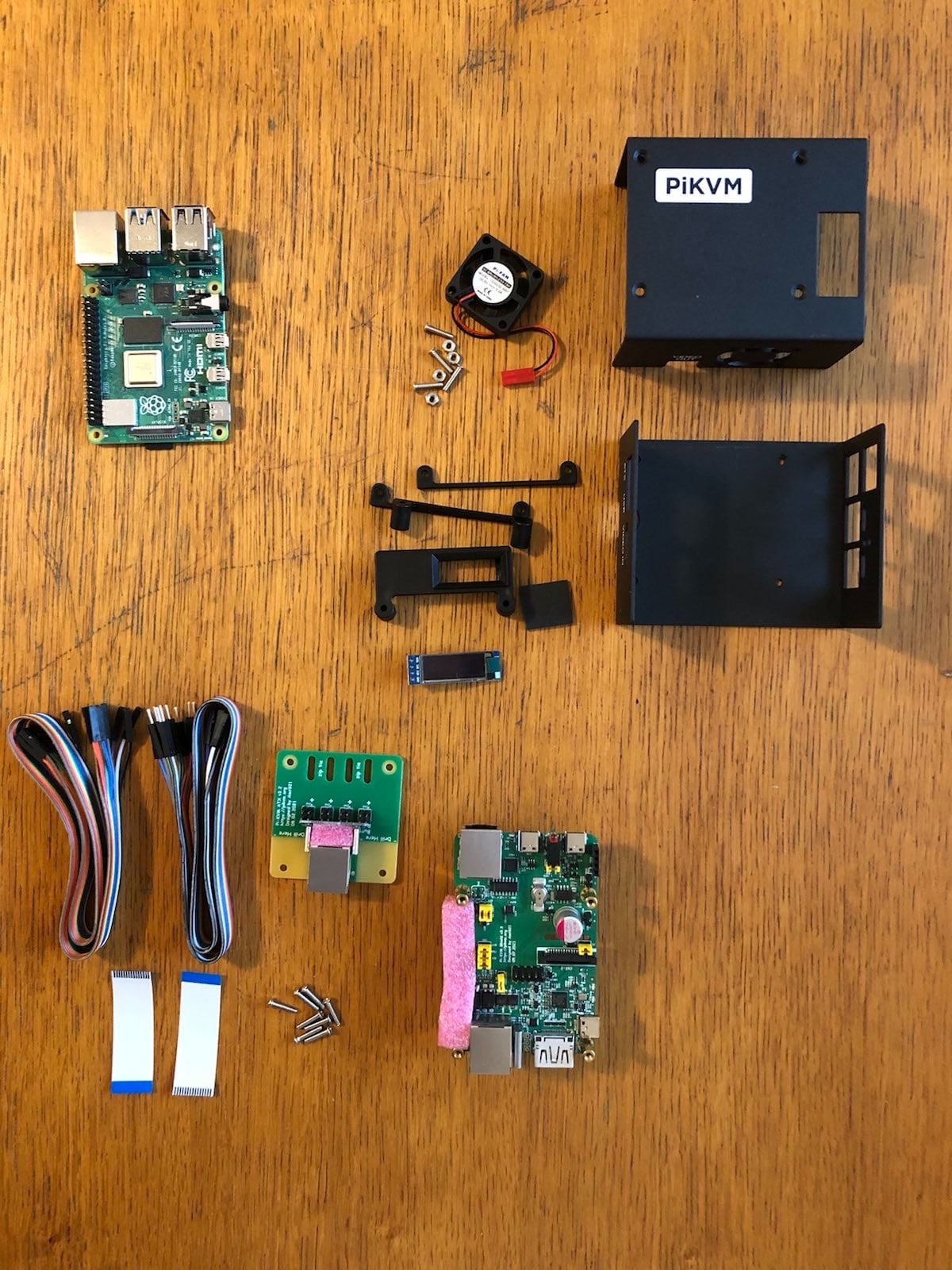
No, na srečo je bil na strežnik priključen PiKVM. Gre za napravico, ki omogoča oddaljen dostop in oddaljeno upravljanje računalnikov. PiKVM je v osnovi dodatek (tim. “klobuk” oz. angl. hat), ki ga priklopimo na RaspberryPi. Nato pa PiKVM priključimo na računalnik namesto monitorja in tipkovnice/miške - v tem primeru nam PiKVM predstavlja virtualni monitor, virtualno tipkovnico, miško, CD, USB ključek, itd. Preko tega nato lahko računalnik ali strežnik oddaljeno upravljamo (vstopimo lahko tudi v BIOS, virtualno pritisnemo gumb za izklop ali gumb za reset) - in to kar preko spletnega brskalnika. Programska oprema je popolnoma odprtokodna, zadeva pa podpira tudi priklop na KVM razdelilec, kar nam omogoča oddaljeno upravljanje več računalnikov - to je recimo idealno za montažo v podatkovni center.

PiKVM ob nakupu

PiKVM ob nakupu.

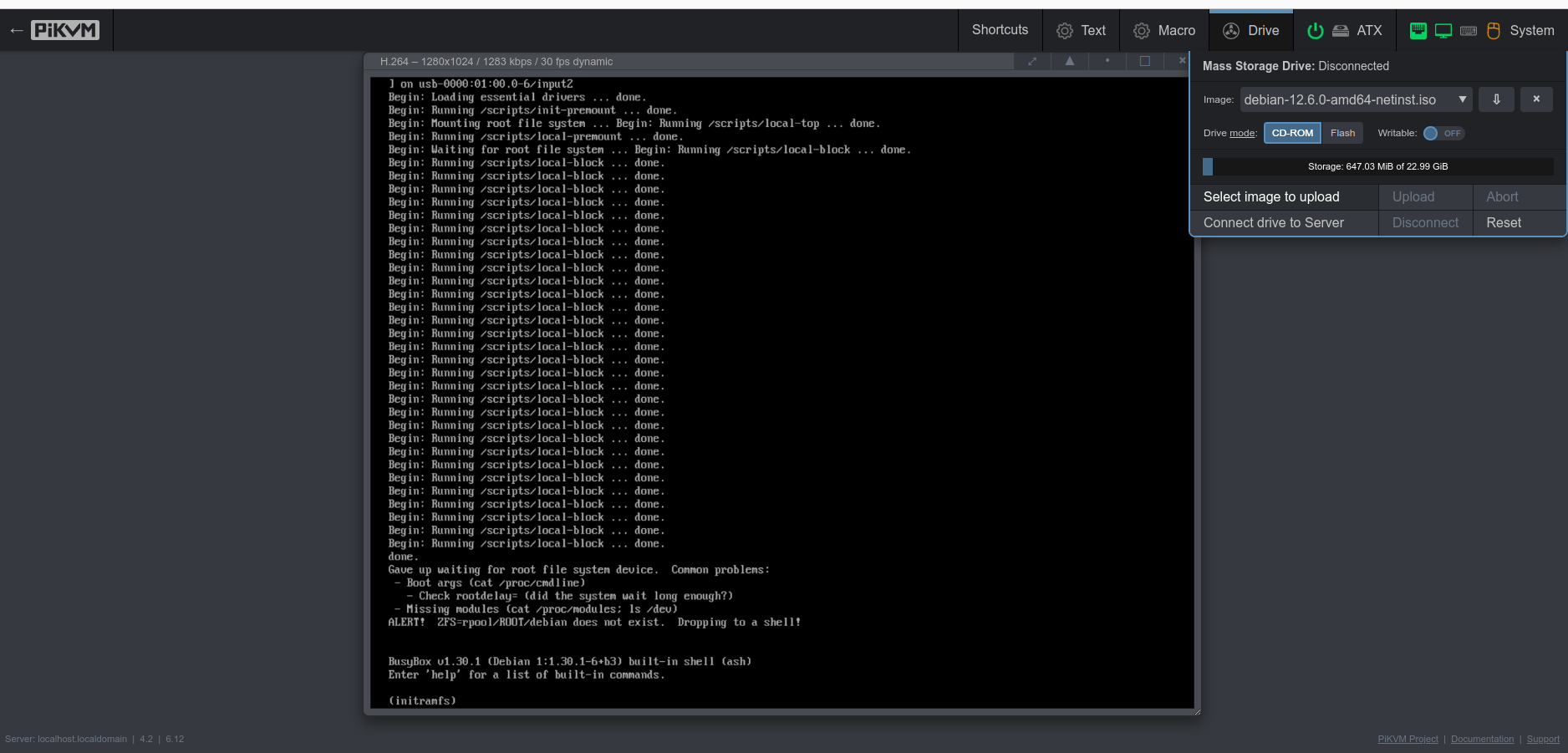
Skratka, ko se strežnik nekaj časa ni več odzival, sem se povezal na PiKVM in šel pogledat kaj se je dejansko zgodilo. In zgodila se je… katastrofa.

Težava

Strežnik je namreč po ponovnem zagonu obstal v initramfs. Aaaaaa! Na dnu zaslona pa se je svetilo še zadnje opozorilo preden je sistem dokončno izdihnil - ALERT! ZFS=rpool/ROOT/debian does not exists. Dropping to a shell!. V obupu sem spregledal tisti “s” in prebral “hell”…

V tistem trenutku sem se spomnil, da je bil na korenskem razdelku strežnika seveda nameščen ZFS datotečni sistem - in to šifriran - ob nadgradnji pa sem seveda pozabil ročno omogočiti tim. jedrne module (angl. kernel modules), ki bi omogočili, da operacijski sistem ob zagonu prepozna ZFS. In da bi bila stvar še hujša - na strežniku je teklo (no, zdaj pač ne več) več virtualnih strežnikov. Ki so bili sedaj seveda vsi nedosegljivi.

Opomba. ZFS (Zettabyte File System) je napreden datotečni sistem, ki je znan po svoji zanesljivosti, razširljivosti, uporabi naprednih tehnik za preverjanje in popravljanje napak (kar zagotavlja, da so podatki vedno dosledni in brez poškodb), uporabi kompresije in deduplikacije, itd. Skratka, idelaen za strežniška okolja.

Dobro, zdaj vemo kaj je problem, ampak kako ga rešiti?

Načrt za njeno rešitev

Da si vsaj malo opomorem od pretresa, sem si najprej pripravil močno kavo. Odločitev se je izkazala za strateško, saj se je reševanje sistema zavleklo pozno v noč (in še v naslednje dopoldne).

Po krajšem razmisleku se mi je v glavi zarisal naslednji načrt. Najprej sistem zaženem iz “Live Debian CD-ja”, na ta začasni sistem namestim podporo za ZFS, priklopim ZFS diskovje, se “chroot-am” v stari sistem, tam popravim nastalo škodo in vse skupaj ponovno zaženem. In to je to!

Na tej točki bi se v kakšnem starem filmu samo še vsedel na konja in odjahal v sončni zahod, ampak kot se je izkazalo, je bila pot do konja (in njegovega sedla)… še precej trnova. Pa pojdimo po vrsti.

PiKVM v akciji

PiKVM v akciji.

Najprej sem na PiKVM prenesel datoteko debian-live-12.6.0-amd64-standard.iso, jo priklopil kot navidezni CD, ter zagnal strežnik. To je bilo resnično enostavno in PiKVM se je ponovno izkazal za vreden svojega denarja.

Se je pa že kar na začetku izkazalo, da strežnik prepoznava samo ameriško tipkovnico. In ker imam jaz slovensko, je bilo treba najprej ugotoviti katero tipko moram pritisniti, da dobim točno tisti poseben znak, ki ga potrebujem. No, tule je nekaj v mojem primeru najpogosteje uporabljenih znakov na slovenski tipkovnici in njihovi “prevodi” na ameriško tipkovnico:

- /
? - 
Ž |
+ =
/ &

Luč na koncu tunela

Naslednji korak je bil, da v /etc/apt/sources.list tim. “živega sistema” dodam še skladišče contrib. Nato pa sem že lahko namestil podporo za ZFS: sudo apt update && sudo apt install linux-headers-amd64 zfsutils-linux zfs-dkms zfs-zed.

Po minuti ali dveh, pa sem že lahko naložil ZFS jedrne module: sudo modprobe zfs. Ukaz zfs version je pokazal, da podpora za ZFS zdaj deluje:

zfs-2.1.11-1
zfs-kmod-2.1.11-1

No, prvi korak je uspel, sedaj pa je bilo v sistem potrebno “samo še” priključiti obstoječe diskovje. Najprej sem naredil ustrezno mapo, kamor bom priklopil diskovje: sudo mkdir /sysroot.

Nato pa sem skušal nanjo priključil svoj “rpool” ZFS. Spodnji ukazi so zgolj približni (verjetno je treba narediti še kaj, recimo nastaviti tim. mountpoint), so pa lahko vodilo komu, ki bo imel podobne težave. Naj seveda dodam, da ni šlo povsem enostavno in je bilo potrebno kar nekaj telovadbe, da sem uspel priti do končnega cilja.

sudo zpool import -N -R /sysroot rpool -f

sudo zpool status
sudo zpool list
sudo zfs get mountpoint

Na tej točki sem vnesel šifrirno geslo: sudo zfs load-key rpool… in preveril, da je ZFS odklenjen: sudo zfs get encryption,keystatus.

Sedaj pa priklop: sudo zfs mount rpool/ROOT/debian. In evo, podatki so bili vidni in kot je kazalo ni bilo nič izgubljenega!

Oživljanje “pacienta”…

Končno je sledil chroot v stari sistem:

sudo mkdir /sysroot/mnt
sudo mkdir /sysroot/mnt/dev
sudo mkdir /sysroot/mnt/proc
sudo mkdir /sysroot/mnt/sys
sudo mkdir /sysroot/mnt/run
sudo mount -t tmpfs tmpfs /sysroot/mnt/run
sudo mkdir /sysroot/mnt/run/lock

sudo mount --make-private --rbind /dev /sysroot/mnt/dev
sudo mount --make-private --rbind /proc /sysroot/mnt/proc
sudo mount --make-private --rbind /sys /sysroot/mnt/sys

sudo chroot /sysroot/mnt /usr/bin/env DISK=$DISK bash --login

Zdaj sem bil torej uspešno povezan v stari (“okvarjeni”) sistem. Najprej je bilo vanj potrebno namestiti ZFS podporo:

apt install --yes dpkg-dev linux-headers-generic linux-image-generic
apt install --yes zfs-initramfs
echo REMAKE_INITRD=yes > /etc/dkms/zfs.conf

…z manjšimi težavami

Seveda se je vmes pojavila še ena napaka, in sicer nameščanje programske opreme ni bilo možno zaradi okvarjenega systemd paketa. To sem rešil z:

sudo rm /var/lib/dpkg/info/systemd*
sudo dpkg --configure -D 777 systemd
sudo apt -f install

Potem so se seveda pojavile še nerešene odvisnosti… kako točno sem to uspel rešiti se niti ne spomnim več, pomagali pa so naslednji ukazi (ne nujno v tem vrstnem redu):

dpkg --force-all --configure -a
apt --fix-broken install
apt-get -f install

Zdaj je bilo potrebno priklopiti še efi razdelek (za katerega je bilo potrebno najprej ugotoviti kje točno se sploh nahaja):

cp -r /boot /tmp
zpool import -a
lsblk
mount /dev/nvme0n1p2 /boot/efi
cd /tmp
cp * /boot/

Zdaj pa zares!

Končno sem lahko pognal ukaze s katerimi sem dodal ZFS jedrne module v jedro operacijskega sistema:

update-initramfs -c -k all
dkms autoinstall
dkms-status
update-grub
grub-install

No, in končno je sledil ponovni zagon sistema, po njem pa je bilo treba popraviti še mesto priklopa ZFS sistema (zfs set mountpoint=/ rpool/ROOT/debian)… še en ponovni zagon - in stari sistem je vstal od mrtvih.

Postfestum sanacija nastale škode

Zaradi silnega čaranja in ne povsem dokončane nadgradnje, je bilo potrebno namestiti manjkajoče programske pakete, ponovno namestiti nekaj systemd paketov in odstraniti stara jedra operacijskega sistema. Vse seveda ročno.

Aja, pa iz nekega razloga je ob posodobitvi izginil SSH strežnik. Ampak to rešiti je bila sedaj mala malica.

Sledil je reboot in nato še enkrat reboot, da vidim, če res vse deluje.

Konec dober, vse dobro

In zdaj deluje. O, kako lepo deluje! ZFS je kriptiran, sistem se po vnosu gesla za odklep lepo zažene, prav tako se samodejno zaženejo virtualni strežniki. PiKVM pa je dobil prav posebno mesto v mojem srcu.

Pa do naslednjič, ali kako že rečejo! :)

P. S. Hvala tudi Juretu za pomoč. Brez njegovih nasvetov bi vse skupaj trajalo precej dlje.

❌